Temporary Facility Closure

Some facilities or areas are temporarily unavailable. View Facility Status for current closures and affected hours.

Group Exercise Timetable

Explore Group Exercise classes across GESAC, Carnegie Memorial Swimming Pool (CMSP) and Caulfield Recreation Centre (CRC), including Reformer Pilates. 

Our live timetable brings all locations together in one place. Need help with the timetable or booking? Follow our step-by-step guides below to find, book and manage your classes.
On this page

Group Exercise Timetables are moving online

We’re moving to a live online timetable so you can access the latest class times and updates in one place. 


Our current PDF timetables will remain available until Sunday 13 December 2026 to give you time to become familiar with the new timetable (see below).


From Monday 14 December, this page will be the one place on our website to view all Group Exercise timetables, giving you access to the most accurate and up-to-date information.  

View our Live Class Timetable

Explore our live timetable below to find a class that suits you. Select Change club to choose your location, then use the filters to find classes by type and day. When you’re ready, book online through the Member Portal.

How to use our live timetable?

The live timetable shows the same class information as the Member Portal. Follow these steps to find a class and view its details. 

  1. Choose your location 
    Select Change club, then choose the GEL location you would like to view. 

  1. Filter your classes 
    Use the filters to narrow your search by class type or other available options. 

  1. Choose a day 
    Select the day you would like to view. Use the arrows to move through upcoming days. 

  1. Browse classes and check availability 
    Scroll through the timetable to see all classes for your selected day. Greyed-out classes are not currently available to book. 

  1. View class details 
    Select a class to see its duration, capacity and available places. 

  1. Read the class description 
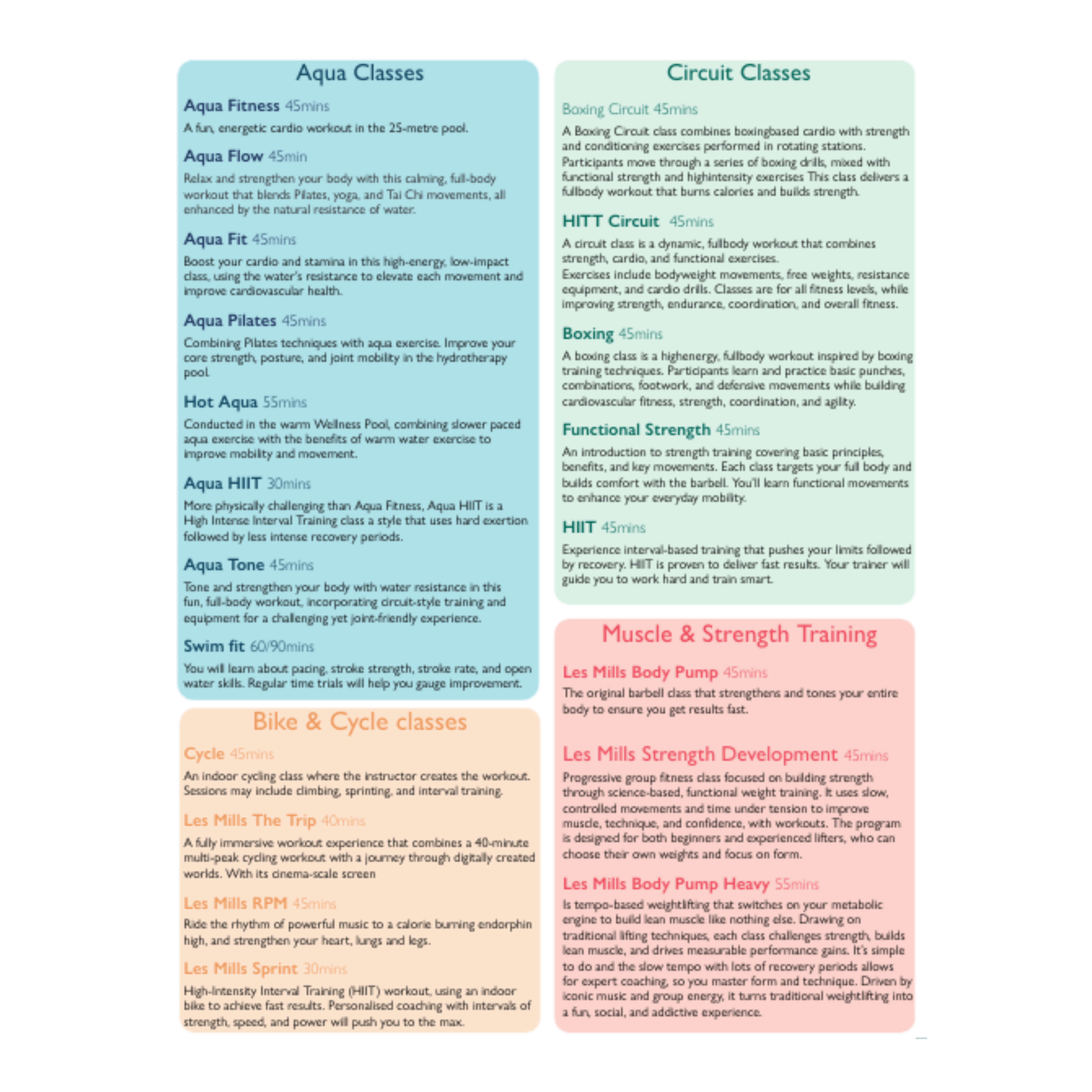
    Select About classes to learn more about the class and what to expect. 

How can members book classes?

  1. Log in to the Member Portal 
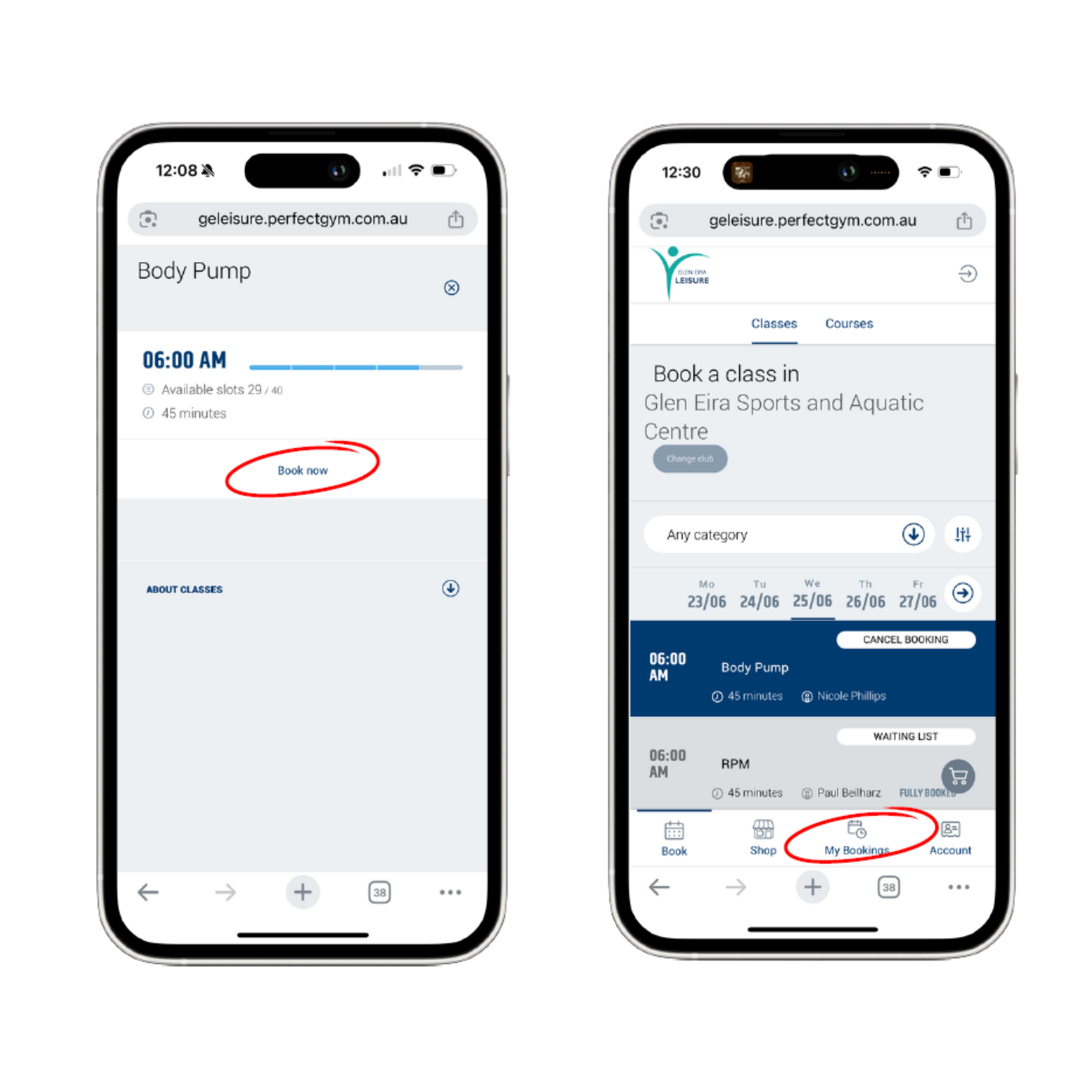
    Select Book now on this page and log in using your Glen Eira  Leisure account.

  1. Select Book 
     From the menu bar, select Book. 

  1. Select Classes 
    Choose Classes to view available Group Exercise classes. 

  1. Find your class 
    Choose your location, use the filters if needed and select the day you would like to attend. 

  1. Select your class 
    Click on the class to view its details and availability. 

  1. Book your place 
    Select Book now to complete your booking. 

When can members book? 

Members can book a class up to 46 hours before the class starts. 

If a class is greyed out, it may be too early to book. Check back once the booking period opens.

Need another way to book? 

You can also book a class by calling Reception or speaking with our team in person. 

How to manage existing bookings?

Already booked a class? 

Go to My bookings in the Member Portal to view your upcoming classes. 

If you can no longer attend, you can cancel your booking through My bookings up to 2 hours before the class starts. 

How can guests book classes?

Guests are welcome to book Group Exercise classes. Before booking your first class, you’ll need to create a free guest account and purchase a casual Group Exercise pass.

  1. Select Book now on our website. 

  1. Join or log in 
    New guest? Select Join Now. Already have an account? Simply log in. 

  1. Create your free guest account 
    Choose your preferred Glen Eira Leisure location, select Create a Free Guest Account and enter your details. 

  1. Find your class 
    Select Book > Classes, then choose your location, day and the class you would like to attend. 

  1. Book your class 
    Select your class, then select Book now and choose the casual pass that matches your class. 

  1. Pay for your class 
    Select Pay now, then Pay on another personal device. 

  1. Choose how to receive your payment link 
    Scan the QR code, or have the link sent to you by SMS or email. 

  1. Complete your payment 
    Open the payment link and follow the steps to securely enter your payment details. 

  1. Check your booking 
    Once payment is complete, select My bookings to see your confirmed class. 

Need help? Call us or speak with our friendly team at Reception and we can help you through the process. 

Managing your booking 

Once booked, go to My bookings to view or manage your upcoming classes. 

You can then follow the same booking and cancellation process as a Glen Eira Leisure member. 

Printable timetables

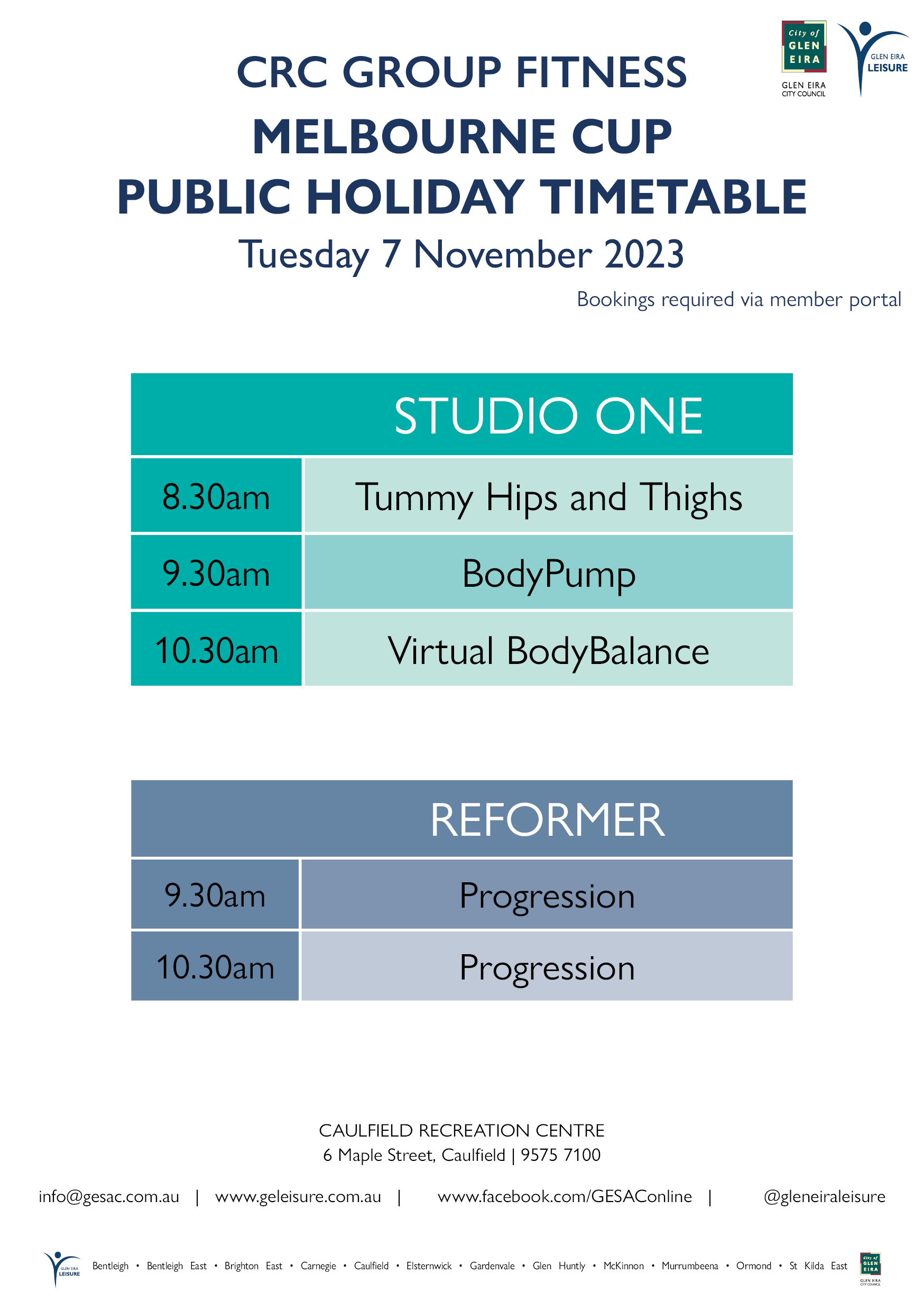
Our printable timetable PDFs are being phased out. 

Our Group Exercise timetable is always evolving, with class times changing and new classes regularly added. To make sure you have access to the most accurate and up-to-date information, our live timetable will become the main place to view classes from 14 December 2026.


Timetable guides and resources

We know some members prefer having information printed or may need a little help getting started with the live timetable. We've created two resources to make the transition easier:

Follow our step-by-step guide

Print this guide and use it to learn at your own pace. Follow the step-by-step instructions and visual guides to learn how to view the timetable, log in to the Member Portal, book a class and manage your bookings. 

Class Descriptions

Download or print our Group Exercise Class Descriptions to explore the classes we offer. Classes are organised by type, making it easy to browse your options, learn more about each class and find one that suits you.


Prefer to print the live timetable?

You can still print the live timetable to keep as an easy reference. Simply choose the location and day you would like to view, then follow the steps below to print a copy. 

Please remember: Our timetable can change as classes are updated or added. We recommend checking the live timetable before attending to make sure you have the most accurate and up-to-date class information.

How to print the live timetable?

1. Open the live timetable 

Click here to view our live timetable (Member Portal). 

2. Choose your location 

At the top of the timetable, select Change club, then choose the location you would like to view. 

3. Choose the day you want to print 

Select the day you would like to print. 

The timetable needs to be printed one day at a time. If you would like several days, repeat these steps for each day. 

4. Check your timetable 

Scroll through the timetable and make sure you have selected the correct location and day before printing. 

5. Open the print menu 

If you are using Google Chrome on a computer: 

  • Click the three dots ⋮ in the top-right corner of your browser. 

  • Select Print. 

Quick tip: You can also press Ctrl + P on a Windows computer or ⌘ + P on a Mac. Google Chrome Help: Print from Chrome confirms these shortcuts.  

6. Choose your printer 

A print preview will open. 

Under Destination, select the printer you would like to use. 

7. Check the preview 

Look at the preview on the screen and make sure the timetable is displaying correctly. 

8. Print 

Click Print. 

Your timetable for the selected day will print. 

Want to print another day? 

Return to the live timetable, select the next day you want and repeat the printing steps. 

Remember: each day needs to be printed separately.


Need help booking a class?

Having trouble booking or accessing the Member Portal? Give us a call, send us an email or speak with our friendly team at Reception. We’re happy to help you find and book your class. 

Call: 9575 7100
Email: info@geleisure.com.au