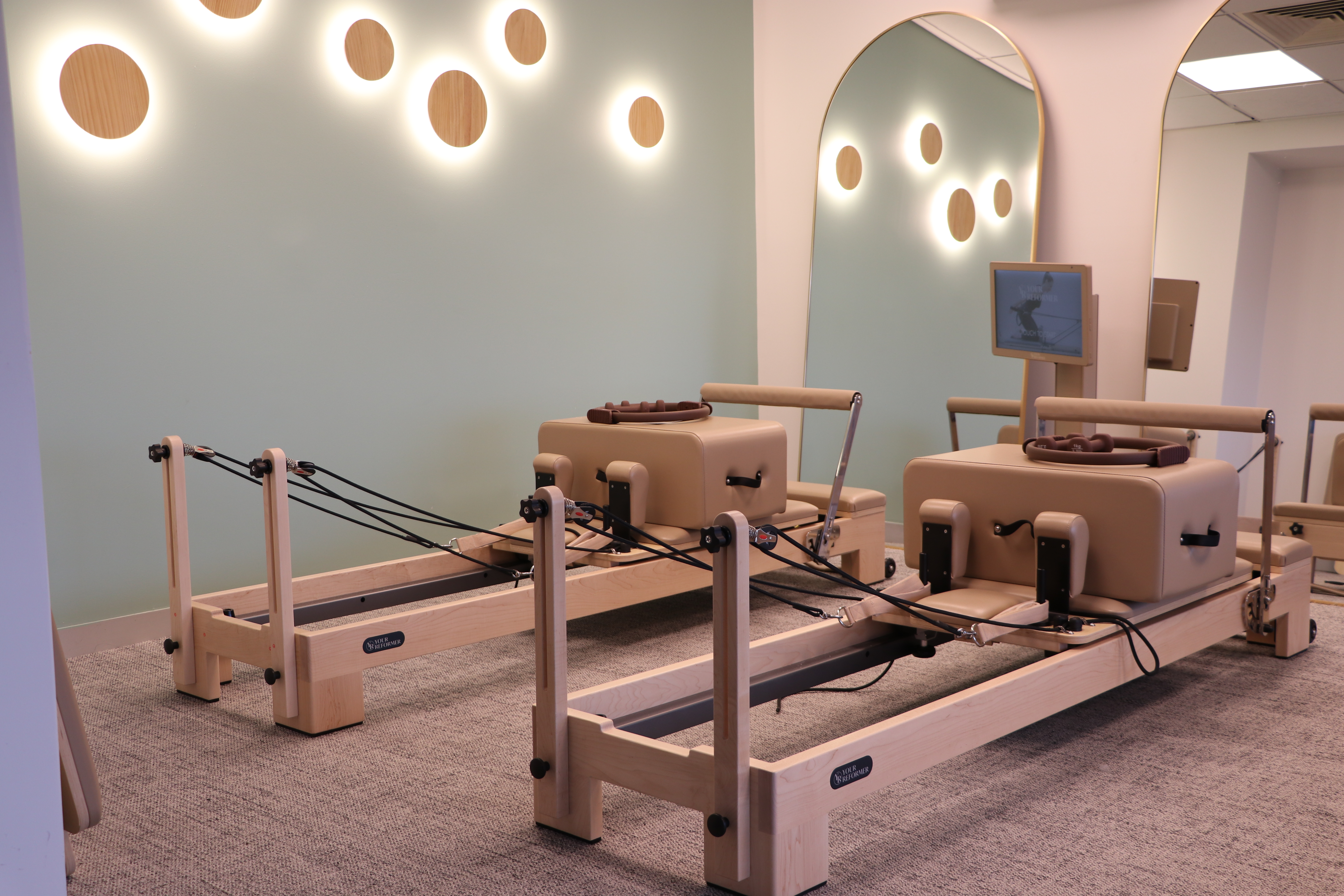
Before starting your workout, it is essential to connect your headphones to the screen so you can clearly hear instructor guidance, workout cues, and audio throughout your session.
Connecting Headphone to Virtual Reformer
Find Your Device Below
Apple AirPods
- Disconnect you AirPods from your Phone
- Place AirPods in the case and open the lid.
- Press and hold the setup button on the back until the light flashes white.
(AirPods 4: double-tap the front of the case until the light flashes white.)
Samsung Galaxy Buds
- Disconnect you Galaxy Buds from your Phone
- For most Galaxy Buds, place the earbuds in the case.
- Close the lid for 5-6 seconds, then reopen it.
- If they've been connected before, wear both buds and touch and hold both touchpads until you hear the pairing sound.
Some newer Buds3 models use a pairing button on the case.
Sony
- Disconnect your Sony Headphones from your Phone.
- Turn the headphones off.
- Press and hold the Power button for about 7 seconds until you hear "Bluetooth pairing" or see the indicator flashing.
Bose
- Disconnect your Bose Headphones from your Phone.
- Press and hold the Bluetooth/Power button (or slide the Bluetooth switch and hold it) until the light flashes blue and you hear "Ready to connect."
JBL
- Disconnect you JBL Headphones from your Phone
- Press and hold the Power button for about 5 seconds until the LED flashes blue.
Many JBL earbuds enter pairing mode automatically the first time they're removed from the case.
Sennheiser
- Disconnect you Sennheiser Headphones from your Phone
- With the headphones off, press and hold the Power button for about 4 seconds until the LED flashes red and blue
More Virtual Reformer Information
